

World Types & Publishing
Solo or multiplayer
Every world can be set as solo (the default) or multiplayer in World Settings. A solo world hosts one user at a time, and everything behaves in the most intuitive way.
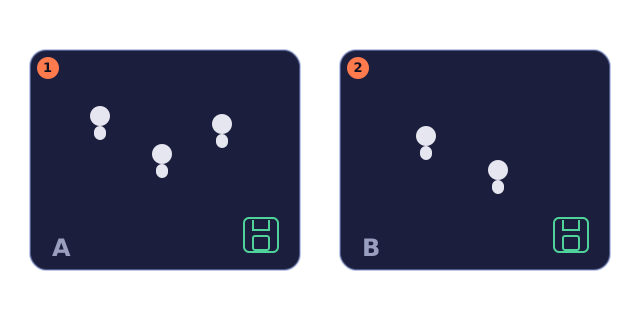
A multiplayer world runs persistent instances: each user who enters is placed in one, and everyone in the same instance can see each other. You can switch the type at any time.
Test Run is always solo: no matter your world's type, running it never creates an instance, so you can debug your mechanics anytime.
Multiplayer worlds
A multiplayer world consists of persistent instances. The author creates and names them under World Settings → Instances, in any number; whichever instance a user enters is where their progress lives. World pages and the entry picker show up to 20 instances, while the editor lists them all.
A multiplayer world needs at least one instance, or nobody can enter. Unless the author deletes it, an instance stays for good — users can remain inside as long as they like.
- You have played here: return to the instance your save lives in; if it is full, pick another instance with room or cancel.
- New user: enter an instance that is not full automatically.
- Every instance is full: the picker has no enterable instance, so you can only cancel — wait for someone to leave, or ask the author to add an instance. Instances are author-made; none is created automatically.
When you click Enter on a specific instance row, or open a share link that names an instance, you go into exactly that instance (regardless of where your existing save lives) — to be together with a friend, enter the same instance.
Users in the same instance see each other, with a nameplate above each head (nickname; guests show "Guest·XXXX"). Pickups are shared: within one instance, an object is picked up only once — first come, first served.
Each instance's capacity is the "Max X users" field next to "Multiplayer world" in World Settings (at least 2) and is limited by your membership tier — the free tier allows up to 4 per instance; higher tiers raise the limit. The editor enforces the limit as you type.
The author can delete an instance from the Instances page: the progress of everyone inside is deleted with it. Anyone inside at that moment is moved out first and sees "This instance no longer exists".
There is no minimum. Want a "needs x users to start" rule? Compose it yourself: add a start button whose interaction condition checks the online count. Richness comes from combining pieces, not from built-ins.
World gates work in multiplayer worlds too: crossing one carries the whitelisted items into the other world — and when that world is multiplayer, you are placed into one of its instances.
The _players variable
The built-in variable "Users" (written _players in formulas) is the current online count of the instance you are in, including guests and yourself. It is read-only: you can check it and display it, but not change it.
[._players] >= 2Composition example: give a "start" button the interaction condition [._players] >= 2 — "at least 2 users present to begin". Combine it with functions and effects to build rooms, lights, or gates that react to the headcount.
In solo worlds and Test Run it is always 1 — your composed logic never breaks when the world type changes.
Versions
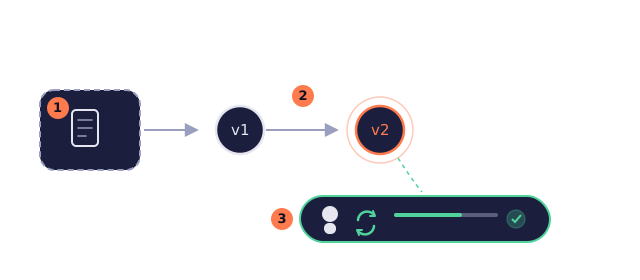
A world you are editing lives as a draft, visible only to you. Hit "Save Draft" anytime and keep working on it.
"Publish" snapshots the draft into a new version. Versions only append, never overwrite: the draft stays after publishing, you keep editing it, and the next publish is a new version again.
After publishing, the new version takes effect in every instance at once: users inside a multiplayer instance see a "New version published · Reload" hint and can continue on the new version with one click; users in a solo world are unaffected for this session and get the new version next time they enter. Progress is kept and adapted where possible — if the new version removes variables or objects, the matching old progress simply disappears.
Every publish automatically captures a screenshot of the main scene's spawn point. On the Great Wild World, a world card shows your uploaded cover by default and reveals this screenshot on hover; without a cover, the card shows the screenshot directly.
After publishing
There is no upgrade prompt to choose from after publishing: the new version applies directly and progress is kept.
- Users inside a multiplayer instance: see a "New version published · Reload" hint and continue on the new version with one click;
- Users inside a solo world: unaffected for this session; the new version applies next time they enter;
- Everyone's progress is kept and adapted where possible — variables or objects removed by the new version take their old progress with them.
Versions only move forward: there is no going back to an old version after publishing; keep editing and publish the next version instead.
Saves
Each world has one save — one per instance in multiplayer worlds — kept automatically: saving happens on scene change, after 60 seconds of ongoing changes, and as a best effort when you leave the page. You never lift a finger.
The save remembers everything: your position, bag, variables, journal, and collected objects. Next time you enter the same world, you continue where you left off.
The "Continue" button on a world page takes you back to where you left. The Portal's Saves page lists saves for all your worlds — the newest one is your "Last visited".
Each save on the Saves page can be deleted. Deleting a single-player world's save cannot be undone — the world returns to its initial state. In a multiplayer world only your personal progress is removed (bag — including items brought from other worlds — journal, read records, position); the world itself is not reset, and shared items already collected do not return.
Visibility
| Visibility | Who can enter |
|---|---|
| Private | Only you. Setting a world private disconnects all gate connections first, then delists it. |
| Public | Visible and enterable by everyone; listed in the Great Wild World. |
| Unlisted | Not listed; only people with the share link can enter. |
A world that has never been published (no versions yet) is never listed — publish first, then go public.
You can delete a world from its card in My Worlds: all gate connections are disconnected first, then the world's saves, progress, and multiplayer instances are removed. Deletion cannot be undone.
The share link is the key: whoever holds it can enter that world, private worlds included. Share it only with people you trust.