

Variables
Variables and scopes
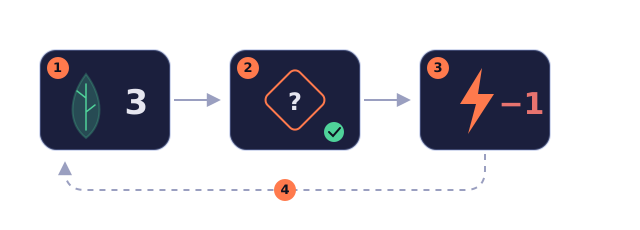
Variables are the world's memory — each holds an integer (starting at 0). You read and write them from conditions and effects to wire objects together: variables, conditions and effects are the glue of every mechanic.
- World variables — one copy for the whole world, kept across scenes;
- Scene variables — remembered per scene: saved when you leave, restored when you return;
- Object variables — each placed object has its own copy, kept across scenes;
- The bag — counted automatically per item type: pick up two, the number is two.
Object variables are defined in the object library too: one library object can be placed many times, and each instance keeps its own copy. The instance panel lets you override initial values but not add or remove variables — go back to the library for that.
User variables (the “User variables” tab in world settings) are integer variables, one per user. In test runs and single-user worlds they behave like normal world variables; in multiplayer worlds everyone has their own copy — they read and change only their own, saved only with your own save, and never affect other users. In the Bi Qi card world, for instance, everyone has their own “seat number”; the built-in “Skin” is also one of these.
Where initial values live: world variables in World settings · World variables; scene variables in the scene inspector; object variables in the object library (override them per instance once placed); user variables in World settings · User variables. During play you read and write them from conditions and effects; functions can reference them too.
Built-in variables at a glance
Built-in variables always exist: you don't create them and can't delete them. The editor shows friendly names; formulas use the short names listed below.
| Display name | Formula name | Scope | Read / write |
|---|---|---|---|
| Darkness | _darkness | Scene | Read / write |
| Gravity | _gravity | Scene | Read / write |
| Visible | _visible | Object (all) | Read / write |
| Light intensity | _intensity | Object (light) | Read / write |
| Light radius | _radius | Object (light) | Read / write |
| Lit | _lit | Object (light) | Read / write |
| Gate open | _open | Object (gate) | Read / write |
| Timer remaining | _remaining | Scene timer | Read / write |
| Timer running | _running | Scene timer | Read / write |
| Skin | _skin | User | Read / write |
| Users online | _players | World | Read-only |
| Title level | _title | User | Read-only |
“Users online” and “Title level” are read-only: conditions can check them, but writing them has no effect. All other built-in variables can be changed from effects or functions.
Darkness
Darkness says how dark a scene is, from 0 to 100: 0 is bright, 100 is pitch black. Give it an initial value in the scene settings; during play, effects or functions can change it and the screen updates immediately.
Darkness is a veil over the whole scene; light sources cut bright holes in it — their intensity and radius decide how bright and how large. In a pitch-black scene, you see nothing without a light.
In formulas: [Forest._darkness] — the first part is the scene name or scene number, followed by the variable name.
Gravity
Gravity applies to side-view scenes: it is the downward acceleration — the higher it is, the faster you fall and the heavier the jump. The default 2000 is normal gravity; set an initial value in the scene settings and change it from effects or functions during play.
Two special values: 0 means floating — no falling and no jumping, move freely in all four directions; a negative value flips the world — you fall upward, the ceiling is the floor. Top-down scenes don't use gravity.
In formulas: [Forest._gravity].
Visible
Every object placed in a scene has a Visible variable: 1 = shown, 0 = hidden. It starts at 1; you can give it an initial value, check it in conditions, and change it from effects or functions.
A hidden object is completely gone: not drawn, not blocking, not interactable, its trigger doesn't fire, and a light stops shining; set it back to 1 to restore everything. In the editor, objects hidden at their initial value show semi-transparent so you can keep editing; only the test run truly hides them. Timers don't have this variable.
In formulas: [Forest.Chest._visible] — the first part is the scene, the second the object.
Lights: intensity, radius, lit
Every light has three built-in variables: intensity (0–100), light radius (pixels), and lit (0 or 1).
The object library defines a light's default intensity and radius; once placed, each instance can override its initial values. Lit starts at 1 (always on).
A light only brightens darkness when it is lit, its intensity is above 0 and its radius is above 0. When the lit state changes, the light plays its trigger sound if one is assigned.
In formulas: [Forest.Campfire._lit] / [Forest.Campfire._intensity] / [Forest.Campfire._radius].
Gate open
Every gate has an Open variable (_open): 0 = closed, 1 = open. Each time a user passes through, it becomes 1 and stays that way across scenes — use it in conditions like “only allow this once the gate has been opened”.
Effects can change it too (set it back to 0 to mark the gate unopened), and the gate's look follows: the object library lets you give a gate a separate sprite for its open state.
Note: this variable is just a record — it does not block anyone by itself. To require a key, put the condition (for example, keys ≥ 1, plus a message when it fails) on the gate itself.
Timers: remaining and running
Every scene timer has two built-in variables: Remaining (_remaining, seconds) and Running (_running, 0/1).
In the timer's settings (scene inspector), give Remaining an initial value: a positive number starts counting automatically when the scene is entered; 0 means it doesn't start by itself.
When the countdown reaches zero it checks once: if its conditions hold it runs the effect, then stops; if not, it also stops and won't retry. To make it repeat, set Remaining back to a positive number inside the effect — each time it hits zero, another round begins.
While counting, setting Remaining to 0 cancels it (it won't fire); setting another positive number restarts the countdown. All timers share one clock and advance once per second.
Running says whether the timer is counting right now (0/1); it is mostly used in conditions. Setting its initial value to 1 while Remaining is 0 makes the timer fire once immediately after the scene is entered.
Skin
Skin records the number of the skin your character is wearing (a skin material's number). 0 means the default skin; set it to another skin's number from an effect or function to change instantly.
The number is on the skin card in the Materials view (the digits after #). The initial value is the world's default skin chosen in world settings; set it back to 0 to return to that default.
Only real skin numbers work: writing the number of an image or other material, or a number that doesn't exist, is ignored — your skin stays as it is.
In multiplayer worlds each user has their own copy: you change only your own skin; others see your new look, and their skins are unaffected.
Users online
Users online is how many users are in this instance right now (guests included). It is always 1 in test runs and single-user worlds; in multiplayer worlds it changes in real time as people come and go.
Read-only: writing it has no effect. Use it in “start once enough users are here” conditions, or show it live on a HUD.
In formulas: [._players].
Title level
Title level is your title in this world: 0 = no title yet, 1 = the lowest tier, 2, 3 and so on upward — determined by the titles and coin thresholds the author set.
Read-only: writing it has no effect. It is matched each time you enter the world from your total coins in that world (after the author changes thresholds, the change applies on your next entry).
In formulas: [._title].