

Connected Worlds
The idea
Every world is a node, and gates weave them into a network. Your world can be a quiet corner of that network or a busy hub — the choice is entirely yours.
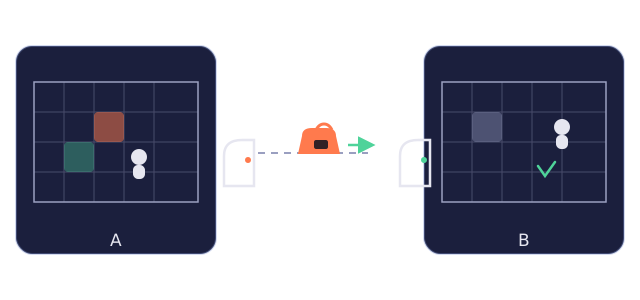
- Gates are the passages between worlds. Walk through one, and you arrive in another world.
- Your bag is your luggage. The items in it can travel with you through a gate into other worlds.
- The whitelist is the agreement the two world authors strike: which items may pass through the gate.
Items the other side lets through automatically appear in your object library as shared objects — place them in scenes and use them in conditions and effects, just like your own objects.
Gates
Gates come in two kinds: scene gates, which send users to another scene in the same world, and world gates, which send users into another world. Once a connection is live, a world gate automatically points to the matching gate in the other world.
A gate can carry conditions — it only lets users through when they are met, and otherwise shows the message you wrote. A world gate's label automatically includes the destination world's name, so users can see at a glance where it leads.
- A connection starts from a "free gate": a gate that is part of no connection and does not link scenes inside your own world.
- A gate can take part in only one connection at a time — a connected gate cannot start another.
- A connected gate cannot be deleted directly: disconnect first, and deal with it once it reverts to a plain scene gate.
Request a connection
On the other world's page, click "🔗 Connect request" and choose which of your worlds will connect. Neither world may be private — both need to be Public or Unlisted to take part.
- On the other world's page, click "🔗 Connection request".
- Pick which of your worlds will connect.
- Tick the gates to use (free ones only) — you may pick several.
- Tick the bag items that may be carried over — this is your side of the whitelist.
- Write a short request message (the other author will see it) and hit "Send request" — it lands in their inbox.
Approve & connect
The other author clicks "View connection" in their inbox to open the connection detail page — approval and rejection both happen there.
- Match one of your own gates to each of the requester's gates — gate to gate, and every requested gate must be matched.
- Tick the reverse whitelist: which items the other side may bring over.
- Click "Approve" — the connection is established at once and both worlds' gates go live immediately.
It is fine if either side has never published: on approval, the unpublished side's first version is published automatically and the connection goes live at once — the requester sees this note when sending the request.
Bag & whitelist
Crossing a gate moves whitelisted items with you: they leave the source world's bag and enter the destination world's bag — crossing relocates, it never duplicates. Both sides' progress is saved immediately on every crossing.
- Only whitelisted items cross the gate — everything else stays in the world it came from.
- Items that originated in the other world automatically come home with you, so nothing is ever stranded there.
- Each side manages its own whitelist: once connected, either side can edit it anytime on the detail page — the change takes effect immediately and the other side is notified.
- An item you carry over cannot be referenced in the other world's conditions or effects until that author adds it to their own world and publishes.
Crossing always enters the other world's latest published version — no choosing between old and new. Your saved progress is kept and adapted where possible; variables or objects removed by the new version take their old progress with them.
Manage connections
The connection detail page has two entrances: the "🔗 Connections" entry on a world card in My Worlds (straight in for one connection, pick from a list for several), or a connection notification in your inbox — opening one lands on the detail page and marks its unread notifications as read.
- Gate mapping: the other side on the left, your side on the right, listed gate by gate.
- Bag whitelists: two columns showing what the other side may bring over and what you may bring over; your column can be edited by ticking.
- Gate locks: either side can lock its own gate — while locked, nobody can pass through it (your side sees "The gate is locked", the other side sees "The gate on the other side is locked"); no bag items are cleared, and unlocking restores passage at once.
- The request message and a status badge (Awaiting approval / Connected / Broken off …).
Want to adjust the gate mapping? The side that approved the request can submit a new proposal via "✏️ Edit gate mapping" — it works as propose-and-confirm: the change takes effect when the other side confirms, stays as is if they reject, and can be withdrawn while pending. (In a self-connection, where both worlds are yours, either side can propose.)
Disconnecting is a unilateral right: either side can break the connection at any time — the red "Break connection" button sits at the top right of the page and asks for confirmation. Afterwards, both gates revert to plain scene gates.