

Scenes
Scenes
A world is made of scenes: each scene is its own map — a forest, a cabin, a cliffside. The bigger the world, the more scenes it has.
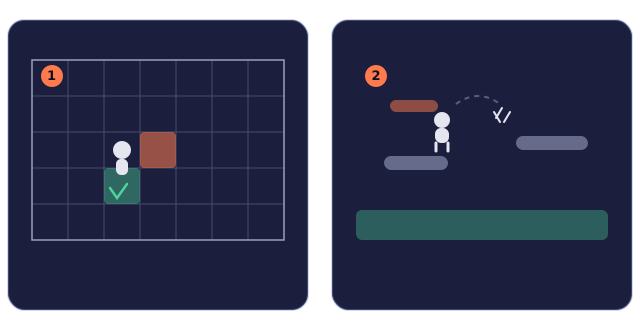
Scenes come in two views: top-down (walk in all four directions) and side-view (platformer — jumping, gravity, falling). You pick the view when you create the scene; it can't be changed later.
To add a scene, right-click empty space on the world canvas → “New top-down scene” or “New side-view scene”; the new scene appears to the right. Click a scene name to edit that scene; drag the name to move it around the canvas (editor view only, not the game). Drag a scene's corners to resize it (in tiles).
In scene settings you can rename the scene and pick a floor style; side-view scenes can also add a background image plus far/near parallax layers (they shift with the camera for depth). None of these looks affect collisions or mechanics.
When you create a world, the first scene is the main scene (a gold star ✦ next to its name) — users entering the world start here. Tick “Main scene” or right-click a scene name and choose “Set as main scene” to move the spawn point; the main scene can change but never be cleared — a world always has an entrance.
To delete a scene, right-click its name → “Delete scene”; you'll be told how many objects it holds. A scene that contains a connected world gate can't be deleted — disconnect it in the portal first.
Scenes are linked by gates: set a gate's destination scene, and pressing E at the gate teleports you there. Test Run always starts from the scene you are currently editing.
Gravity & darkness
Side-view scenes have a gravity slider (−10000 to 10000; the default 2000 is normal gravity): the higher the value, the lower the jump. Top-down scenes have no gravity and don't show this setting.
- Default 2000 is normal gravity: you can jump and climb onto ledges;
- Set it to 0 and you float: move in all four directions with W/S, no jumping, never land — perfect for a space station;
- Negative values flip the world: you fall upward — the ceiling is the floor and jumps go downward.
The darkness slider (0–100) dims the whole scene: the higher the value, the darker it gets — drop in light objects to brighten the places that matter.
A light's intensity and radius defaults live in the object library definition; once placed, each instance can override its initial values. Lit (_lit) is a built-in variable: 1 means always on by default, and you can give it an initial value or change it with an effect — 0 is off, 1 is on.
Every scene object also has a built-in “Visible” variable (_visible): it starts at 1, conditions can read it, and effects or functions can change it. Set it to 0 and the object is completely gone — not drawn, not blocking, not interactable, triggers don't fire, and lights stop shining; set it back to 1 to restore it. In the editor, objects hidden at their initial value are shown semi-transparent so you can keep editing; only the test run truly hides them. Timers don't have this variable.
Gravity and darkness are both built-in variables: “Gravity” and “Darkness” in the editor, _gravity and _darkness in formulas (e.g. [Forest._darkness]) — conditions can read them; effects and functions can also write them.